tp
Developer Guide
Design
Architecture
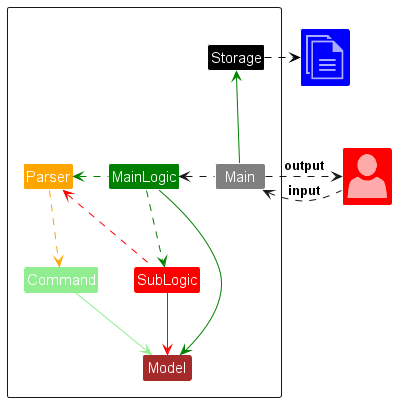
The Architecture diagram given above shows the high-level design of the application.
Given below is a quick overview of main components and how they interact with each other.
Main is in charge of the app launch, shut down, and taking user input.
- At the app launch, it loads the data from the file system, and initializes other components.
- At the app shut down, it saves the data to the file system, and shuts down other components.
The app’s work is done by the following components:
UI: The parser that parses user input to command.MainLogic: The main logic command executor.SubLogic: The sub-logic (i.e.MenuLogic,OrderLogic,StatsLogic) command executor.Model: The data model that stores the data.Command: Represents a command that the user can execute.Storage: Reads data from and writes data to the save data file.
How the architecture components interact with each other
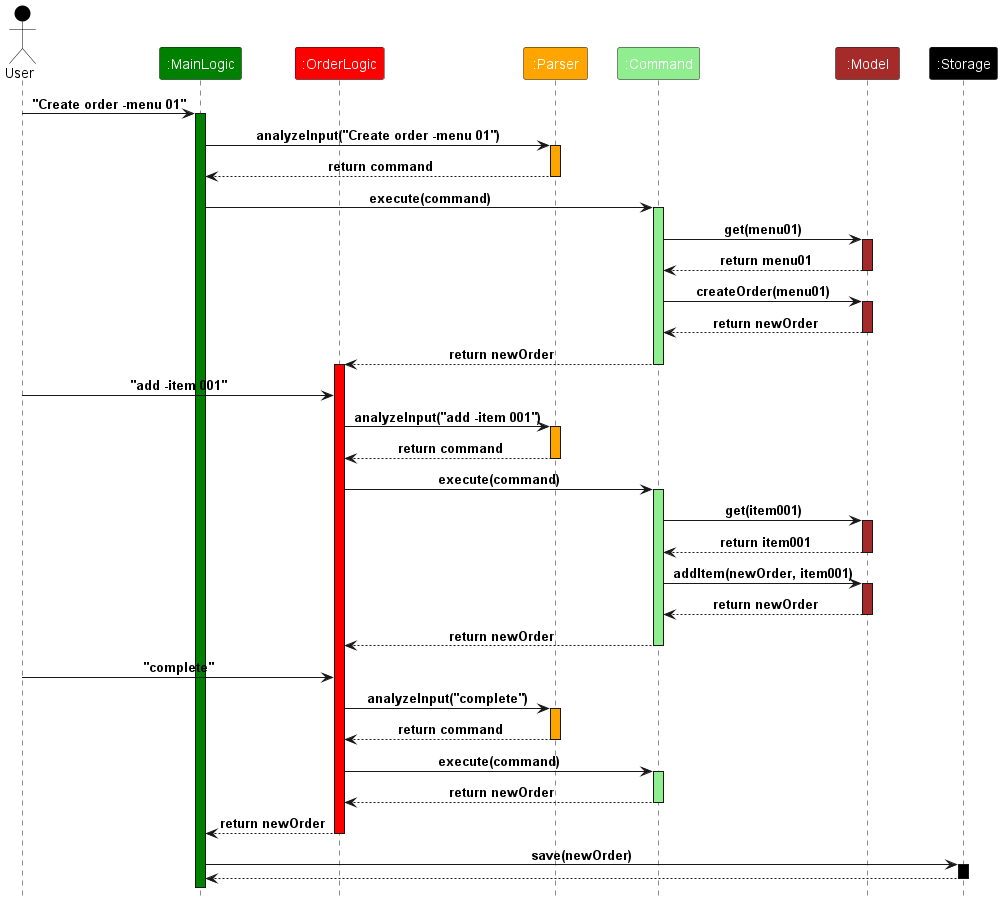
The Sequence Diagram below shows how the components interact with each other for the scenario where the user issues
the command create order -menu 1, add -item 1 and complete.
UI Component
The UI component is responsible for parsing user input into commands that can be executed by the logic component.
There is an analyzeInput method in the Parser class that interprets the user input and classifies
it into a CommandType enum.
The splitInput method is used to split the user input into an array of strings, according to the command type.
It returns an array containing any arguments that are needed to execute the command.
Logic Component
The logic component consists of classes that handle the logic of the application. The logic component is divided into
MainLogic and SubLogic which consist of OrderLogic, MenuLogic and StatsLogic.
MainLogic: A class to handle the first level commands, and pass the user input to corresponding classes for analysis and execution.OrderLogic,MenuLogicandStatsLogic: A class to handle the second level commands, and pass the user input to corresponding classes for analysis and execution.
Command Component
The command component consists of Four different command interfaces: MainCommand, OrderCommand, MenuCommand and StatsCommand. The MainCommand
interface is for the various command classes that are used in the MainLogic, while the OrderCommand interface is for
command classes used in OrderLogic, and the MenuCommand interface is for command classes used in MenuLogic. The StatsCommand interface is for command classes used in StatsLogic.
Based on the command entered by the user (e.g., MainHelpCommand object is created when the user inputs the help
command). The execute() method of the Command object is then called to execute the command, which may require
certain arguments based on the type of command.
Model Component
The model consists of classes describing the objects used in this application.
The general structure is that menu and order are separate, but they both work with menuItem(s), which
represent food items on the menu.
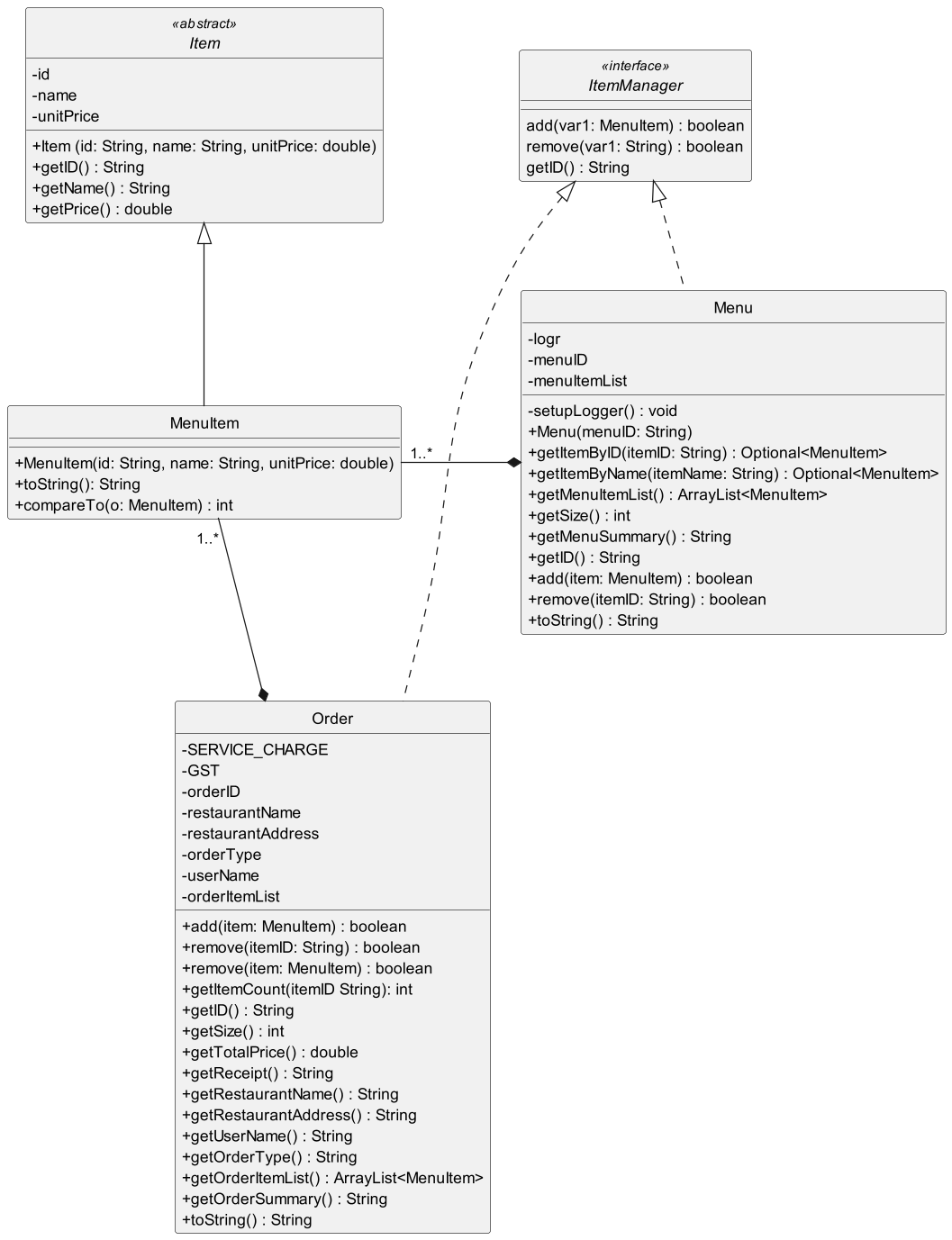
ItemManager: An interface containing methods representing operations common toMenuandOrder.Item: An abstract class representing a food item. It should be implemented byMenuItem.Menu: A class representing the menu(s) of the restaurant, where each contains menuItem(s) that can be ordered. Multiple menus can exist and each has a unique ID.MenuItem: A class inheriting fromItem, and represents a food item on the menu.Order: A class representing an order to be entered into the system to be kept track of. Each order has a unique ID generated from the time of order.Restaurant: A class representing the restaurant which stores the restaurant information such as name and address.
The Class Diagram below shows how the model components interact with each other, including interactions such as dependencies, associations and inheritance.
Storage component
The storage component consists of a Storage class with various static methods that will be called by MainLogic and
the Command objects created in MainLogic. These methods will be called whenever restaurant information is updated,
a new order or menu is completed, and when an existing menu is edited and completed. Restaurant information, orders,
and menus are saved in three separate text files: restaurant.txt, orders.txt, and menus.txt.
When the application is launched, MainLogic calls the checkRestaurantData() method in Storage to check for an
existing restaurant data file in the data folder and attempt to load its data. If the restaurant.txt file is missing
or corrupted, the user will be prompted to enter a restaurant name and address, which is then automatically saved in the
save file.
MainLogic then calls the loadData() method in Storage to load existing order and menu data from orders.txt and
menus.txt into the application. If Storage detects that the save files are corrupted, the corresponding save file
will be deleted from the data folder.
When new orders and menus have been created and completed, and once control is passed back from SubLogic to MainLogic,
MainLogic will then call either saveOrder() or saveMenu() depending on what was created. The newly created
order/menu will then be saved into their respective save file.
After the user edits a menu and completes it with the complete command, the execute() method of the Command object
created by MainLogic will then call the updateMenus() method in Storage. This will save all the changes made to
the menu into the menus.txt save file. The execute() method then returns to MainLogic for further commands.
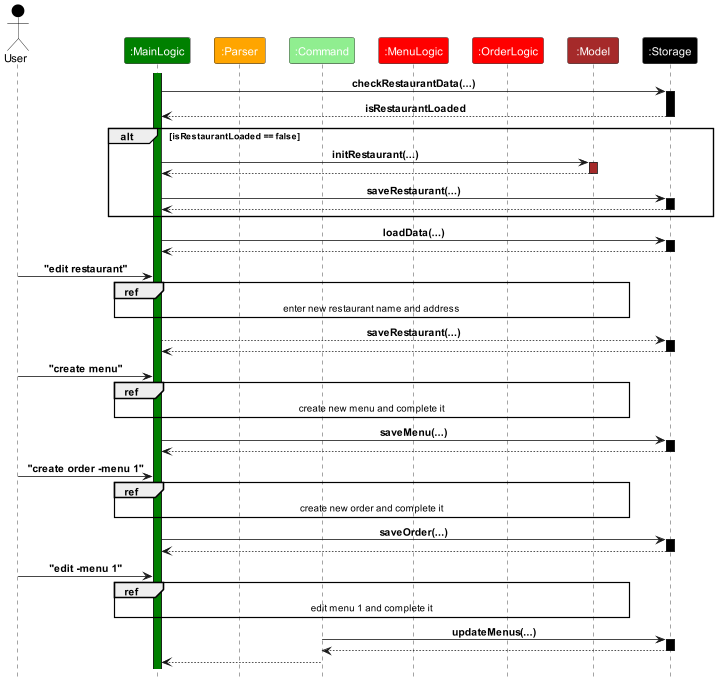
The following sequence diagram shows an example of how Storage interacts with the other components as described
above.
Implementation
MainLogic
Generally, the main logic works as follows:
- User enters an input which is received in the ui and parsed by the
Parser. - The
Parserclassifies the command based onCommandType. - If it is a first level command,
executeis called on the corresponding class. - If it is not a first level command, the command will be pass to
SubLogicto handle.
Create Order
Mainlogic takes user input and creates an Order class , then passes it to OrderLogic to execute the command.
View Order by ID
Mainlogic takes in the command and the order ID, execute the view order command by calling a static method
in ViewOrderCommand class.
View all orders
Mainlogic takes in the command and calls the ViewOrdersSummaryCommand class to execute the command
by querying the orderList.
View Receipt
Mainlogic takes in the command and calls the ViewReceiptCommand class to execute the command
OrderLogic
The following sequence diagram shows an example of how the user’s input is processed by OrderLogic.
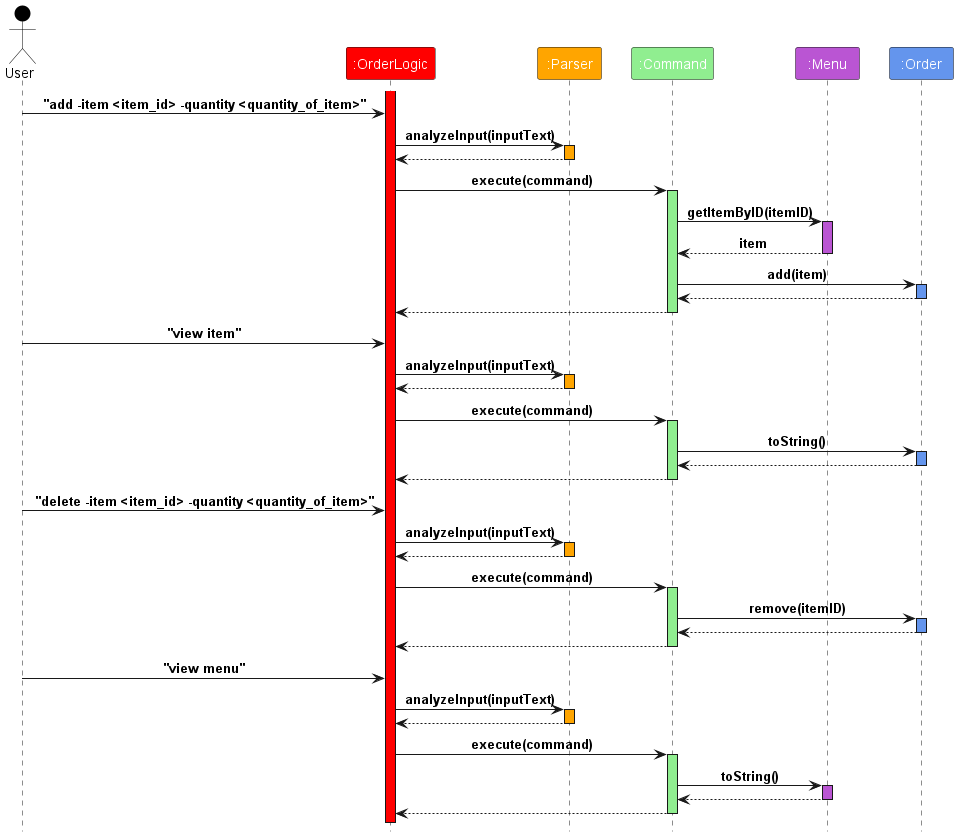
Generally, the order logic works as follows:
- User enters an input which is received in the ui and parsed by the
Parser. - The
Parserclassifies the command based onCommandType - Within
OrderLogic,executeis called on the corresponding class - Control is passed to other sections of the code
View Menu
Within the construct of the order logic, the menu can be accessed for viewing in order to select items from
available menus. This is carried out with the view menu command.
View Items
Within OrderLogic, a list containing all the items that have been added to the current active order can be viewed by executing
the view item command.
Add
Inside OrderLogic, items from the menu can be added into the current active order.
This is carried out using the add -item <item_id> -quantity <quantity_of_item> command,
where <item_id> is an integer corresponding to the item’s id in the menu,
and <quantity_of_item> is an integer of the amount of that item to be added.
Delete
In OrderLogic, items from the current order can be removed via the
delete -item <item_id> -quantity <quantity_of_item> command. <item_id>
and <quantity_of_item> are the same type of parameters as the ones specified
in the Add command class.
Complete
In OrderLogic, once the order is finished, it can be completed and closed
by executing the complete command. This marks the current order as completed
and the program returns back to MainLogic for subsequent command executions.
Cancel
In “OrderLogic”, the user can cancel the current order by executing the cancel command.
This will abort the current order created and return to the main menu.
MenuLogic
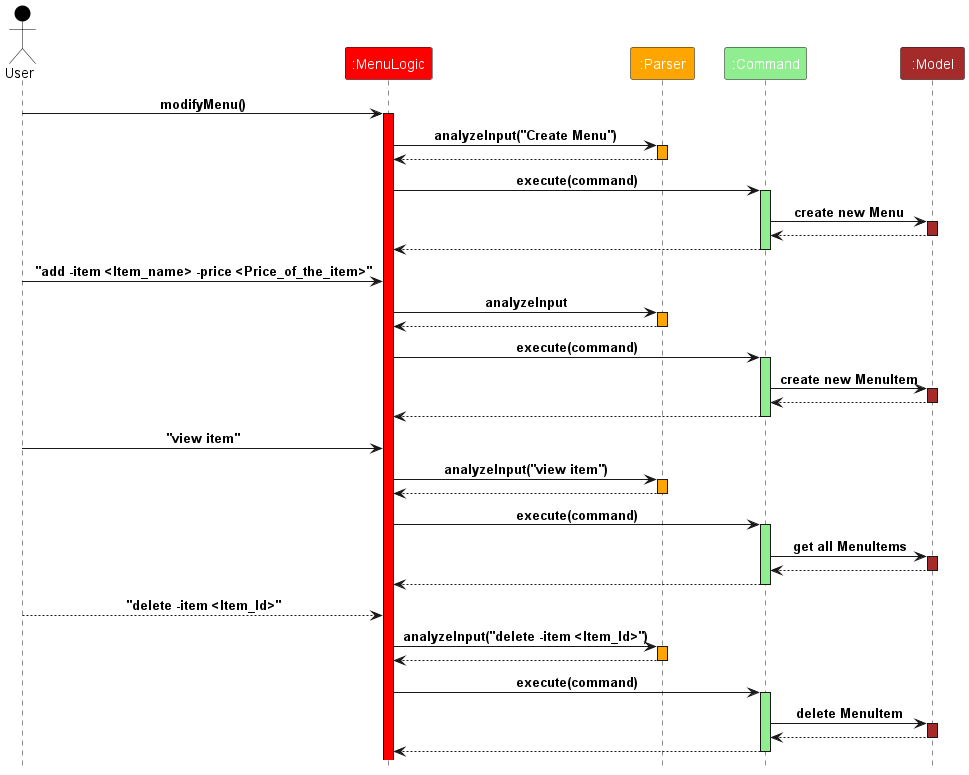
Generally, the menu logic works similarly to order logic:
- User enters an input which is received in the ui and parsed by the
Parser. - The
Parserclassifies the command based onCommandType - Within
MenuLogic,executeis called on the corresponding class - Control is passed to other sections of the code
View Items
Within MenuLogic, a list containing all the items that have been added to the current active order can be viewed by executing
the view item command.
Add
Inside MenuLogic, items from the menu can be added into the current active order.
This is carried out using the add -item <item_name> -price <price_of_item> command,
where <item_name> is a string representing the name of the MenuItem,
and <price_of_item> is a double representing the price of that item to be added.
Delete
In MenuLogic, items from the current order can be removed via the
delete -item <item_id> command. <item_id> is the index of the item in the menu.
Complete
Inside MenuLogic, once the order is finished, it can be completed and closed
by executing the complete command. This marks the current Menu as completed
and the program returns back to MainLogic for subsequent command executions.
Cancel
In MenuLogic, the user can cancel the current menu by executing the cancel command.
This will abort the current menu created and return to the main menu.
StatsLogic
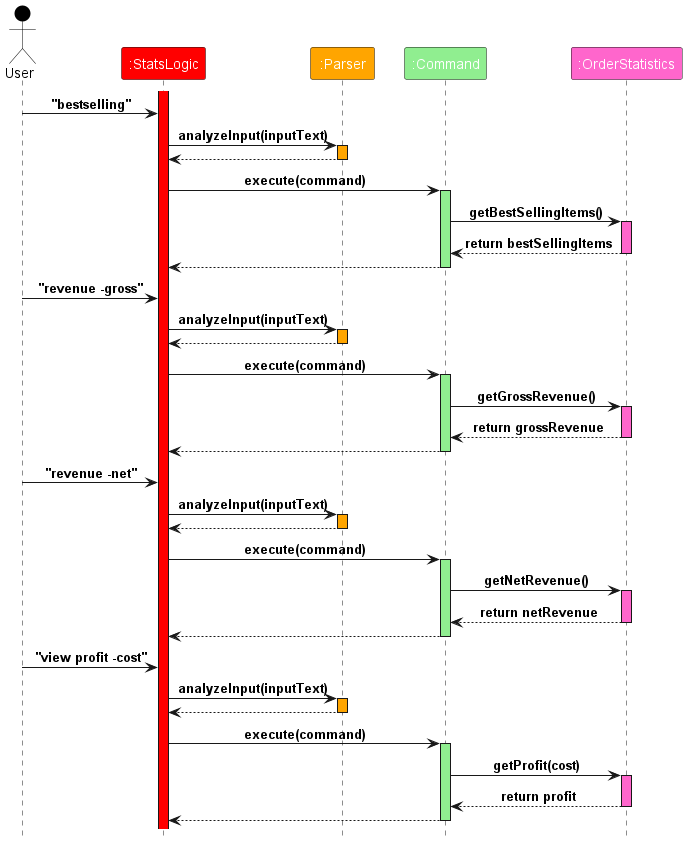
Generally, the stats logic works similarly to order logic:
- User enters an input which is received in the ui and parsed by the
Parser. - The
Parserclassifies the command based onCommandType - Within
StatsLogic,executeis called on the corresponding class - Control is passed to OrderStatistics class to calculate the performance statistics
Bestselling
In StatsLogic, the best-selling item(s) can be viewed by executing the bestselling command.
It calls the getBestSellingItem() method from an OrderStatistics instance to calculate the best-selling item(s)
based on the total count of the items in the ordersList. The ordersList is stored in an ArrayList in MainLogic.
Total Orders
In StatsLogic, the total number of orders can be viewed by executing the total orders command.
It calls the getOrderCount() method from an OrderStatistics instance,
which will iterate through the orders in the ArrayList stored in MainLogic to count the total number of orders.
Revenue - Gross
In StatsLogic, the gross revenue can be viewed by executing the revenue -gross command.
It calls the getGrossRevenue() method from an OrderStatistics instance, which will iterate through the orders in the ArrayList
stored in MainLogic and aggregate the total revenue of each order by calling the getTotalPrice() method in the Order class.
Revenue - Net
In StatsLogic, the net revenue can be viewed by executing the revenue -net command.
It calls the getNetRevenue() method from an OrderStatistics instance, which will iterate through the orders in the ArrayList
stored in MainLogic and aggregate the total revenue of each order by calling the getTotalPrice() method in the Order class.
The net revenue is calculated by subtracting the total revenue from the total service charge and GST.
View Profit - Cost
In StatsLogic, the profit can be viewed by executing the view profit -cost <cost> command.
It calls the getProfit() method from an OrderStatistics instance, which will iterate through the orders in the ArrayList
stored in MainLogic and aggregate the total revenue of each order by calling the getTotalPrice() method in the Order class.
The profit is calculated by subtracting the total revenue from the total service charge and GST, and then subtracting the cost
of the items sold.
Quit
In StatsLogic, the user can return to the main interface by executing the quit command.
Product scope
Target user profile
- has a need to manage orders in a restaurant
- has a need to manage menus in a restaurant
- has a need to manage cashiering duty in a restaurant
- has a need to check the restaurant’s performance
- prefers CLI apps to GUI apps
- can type fast
Value proposition
- Manage orders and menus faster and more efficiently than traditional GUI applications for faster typers.
- Keep track of the restaurant’s daily performance with the stats feature.
User Stories
| Priority | As a … | I want to … | So that I can … |
|---|---|---|---|
* * * |
restaurant owner | add dishes to an order | easily refer and calculate the total price |
* * * |
restaurant owner | delete dishes from an order | remove the dishes that the customers do not want |
* * |
restaurant owner | view the order receipt | check the order details and the total price |
* * * |
restaurant owner | manage cashiering duties in my restaurant | keep track of the money that comes in and out of the restaurant |
* * |
restaurant owner | manage menus in my restaurant | keep track of the dishes that are available in the restaurant |
* * |
restaurant owner | add new items to a menu | adjust menu offerings to customer demand |
* * |
restaurant owner | delete items from a menu | remove items that are no longer available |
* * |
restaurant owner | delete menus | remove menus that are no longer needed |
* * |
restaurant owner | cancel editing a menu | discard changes made to the menu |
* * |
restaurant owner | complete editing a menu | save the changes made to the menu |
* |
restaurant owner | view the menus | check the dishes that are available in the restaurant |
* |
restaurant owner | know the most popular dishes | prepare more raw materials accordingly |
* |
restaurant owner | know the total number of orders | hire the right number of staff |
* |
restaurant owner | know the total revenue | know the restaurant’s daily performance |
* |
restaurant owner | indicate cashier’s name on the receipt | know who is the cashier that served the customer |
* * |
advanced user | change restaurant name and address | update the restaurant’s information |
* * * |
user | quit the application | exit the and save the data |
Non-Functional Requirements
- Should Work on any mainstream OS as long as it has Java 11 or above installed.
- Should be able to handle and save a large number of orders and menus for restaurant’s daily operations.
- Faster typist can use the CLI app more efficiently than GUI app
Glossary
- Mainstream OS: Windows, Linux, macOS.
Instructions for manual testing
Written below are instructions to test the app manually.
Launch and shutdown
- Initial launch
- Download the jar file and copy into an empty folder
- Open a terminal and navigate to the folder containing the jar file
- Run the command
java -jar DinEz.jarto launch the application
- Shutdown
- Type
exitand press enter to shut down the application
- Type
Add item to a menu
- Adding an item to a menu
- Prerequisite: Type
create menuin the Main interface to go into the Menu interface. - Test case:
add -item Beef noodles -price 6
Expected: A new item with the nameBeef noodlesand a price of$6.00is added to the menu. A success message should also appear. - Test case:
add -item Beef noodles -price abc
Expected: Item is not added to menu. Error message appears asking users to check if they have entered the necessary parameters correctly. - Other incorrect add commands to try:
add,add -item -price,add -item 123 -price 12,...
Expected: Similar to previous.
- Prerequisite: Type
Delete item in the menu
- Deleting an item from the menu based on its ID
- Prerequisite: Have already added some items to the menu with the
addcommand. - Test case:
delete -item 1Expected: Item with ID 1 is deleted from the menu. Message appears indicating the name of the removed item has been deleted. - Test case:
delete -item abc
Expected: No item is deleted. Error message appears asking users to check if they have entered the necessary parameters correctly. - Other incorrect commands to try:
delete,delete -item x,...(where x is larger than the last item ID in the menu)
Expected: Similar to previous.
- Prerequisite: Have already added some items to the menu with the
Create order and add/delete/view item
- To create an order
- Prerequisite: Have already created one menu. Type
create order -menu 1in Main interface to enter the Order interface, 1 is the ID of the previously created menu. - Test Case:
Add -item 1 -quantity 2
Expected: Item 1 is added to the order with quantity 2 - Test Case:
View item
Expected: Item 1 is displayed with quantity 2 - Test Case:
Delete -item 1 -quantity 1
Expected: Item 1 is removed from the order with quantity 1
- Prerequisite: Have already created one menu. Type
View created orders
- To view all orders or details of a specific order that has been created
- Prerequisite: Must have already created and completed orders.
- Test case:
view -order -all
Expected: A list of order IDs should appear with their corresponding total price - Test case:
view -order <order_id>(where<order_id>is an order ID from the list obtained fromview -order -all)
Expected: A receipt on the order should appear on the screen. - Test case:
view -order abc
Expected: Error message appears asking users to check if they have entered the necessary parameters correctly. - Other incorrect commands to try:
view -order,view -order x,...(where x is an order ID that does not exist in the list of orders fromview -order -all)
Expected: Similar to previous.
View created menus
- To view all menus or details of a specific menu that has been created.
- Prerequisite: Must have already created and completed menus.
- Test case:
view -menu -all
Expected: A list of menu IDs should appear with their corresponding amount of items that the menu contains - Test case:
view -menu 1
Expected: Details of the menu should appear which includes the ID, name and price of every item in the menu. - Test case:
view -menu abc
Expected: Error message appears asking users to check if they have entered the necessary parameters correctly. - Other incorrect commands to try:
view -menu,view -menu x,...(where x is a menu ID that does not exist in the list of menus fromview -menu -all)
Expected: Similar to previous.
Loading data
All save files should be located in the data folder, and the data folder must be in the same directory as the jar file.
Load restaurant data
In the data folder, create a file named restaurant.txt and enter the following data:
Techno Edge | 2 Engineering Drive 4
Load order data
In the data folder, create a file named orders.txt and enter the following data:
Techno Edge | 2 Engineering Drive 4
20240412112658 | Tom | Dine in
1 | Kimchi noodles | 4.0 | 2
3 | Chicken rice | 3.5 | 1
-
[!NOTE]
- There must be a newline after the
-which indicates the end of the order. If the newline is omitted and the user uses program to create new orders, it will result in the LOSS OF ORDER DATA the next time the program is launched.
Load menu data
In the data folder, create a file named menus.txt and enter the following data:
1
1 | Chicken Rice | 3.5
2 | Nasi Lemak | 3.0
3 | Hokkien Mee | 4.0
4 | Mee Siam | 3.5
5 | Fishball Noodles | 3.0
6 | Chicken Curry Rice | 5.0
7 | Seafood Fried Rice | 5.5
8 | Roasted delight set | 6.5
9 | Hotplate beef set | 7.0
10 | Kimchi noodles | 4.0
-
[!NOTE]
- There must be a newline after the
-which indicates the end of the menu. If the newline is omitted and the user uses the program to create new menus, it will result in the LOSS OF MENU DATA the next time the program is launched.
View loaded data
Launch the application by running the DinEz.jar file which is in the same directory as the data file. The application
should load the data from the saved files and the user should see the following:
Hello from DinEz
Enter user name:
Once the user has entered their user name, they should see the following when view restaurant is entered in the main
interface:
Restaurant name: Techno Edge
Restaurant address: 2 Engineering Drive 4
The user should see the following when view -order 20240412112658 is entered
in the main interface:
+-----------------------------------------------------+
|                       RECEIPT                       |
+-----------------------------------------------------+
|                     Techno Edge                     |
|                2 Engineering Drive 4                |
|                                                     |
| Order Type: Dine in                                 |
| Order ID: 20240412112658                            |
+-----------------------------------------------------+
| Item ID  | Name            | Unit Price  | Quantity |
+-----------------------------------------------------+
| 1        | Kimchi noodles  | $4.00       | 2        |
| 3        | Chicken rice    | $3.50       | 1        |
+-----------------------------------------------------+
| Subtotal:                                    $11.50 |
+-----------------------------------------------------+
| Service Charge (10.0%):                      $1.15  |
| GST (9.0%):                                  $1.14  |
| Grand Total:                                 $13.79 |
+-----------------------------------------------------+
| Cashier: Tom                                        |
+-----------------------------------------------------+
The user should see the following when view -menu 1 is entered in the main
interface:
+------------------------------------------+
|                   MENU                   |
+------+-----------------------------------+
| ID   |         Name          | Price     |
+------+-----------------------------------+
| 1    | Chicken Rice          | $3.50     |
| 2    | Nasi Lemak            | $3.00     |
| 3    | Hokkien Mee           | $4.00     |
| 4    | Mee Siam              | $3.50     |
| 5    | Fishball Noodles      | $3.00     |
| 6    | Chicken Curry Rice    | $5.00     |
| 7    | Seafood Fried Rice    | $5.50     |
| 8    | Roasted delight set   | $6.50     |
| 9    | Hotplate beef set     | $7.00     |
| 10   | Kimchi noodles        | $4.00     |
+------+-----------------------------------+
Saving data
Data is automatically saved into the respective save files once the corresponding action has been completed. The following tests uses the loaded data from Loading Data
Saving restaurant information
After launching the application, enter edit restaurant in the main interface and enter Fine Food when prompted for
restaurant name, and Avenue 0 when prompted for restaurant address. The new restaurant information will then be
automatically saved once the message Restaurant info has been updated. appears. The user should see the following:
[Main interface] >>> edit restaurant
Enter restaurant name:
Fine Food
Enter address of restaurant:
Avenue 0
Restaurant info has been updated.
[Main interface] >>>
Saving orders
After launching the application, enter create order -menu 1 in the main interface. Enter 1 when prompted for the
order type (dine in/takeaway). Enter the following commands in sequence inside the order interface:
add -item 2 -quantity 3, add -item 4 -quantity 1. Afterwards, enter complete in the order interface and type y
when the confirmation message appears. The completed order is then automatically saved in the orders.txt file inside
the data folder. The user should see the following:
[!NOTE]
order_idis just a placeholder for the actual ID of the order depending on the time the user creates the order and differs from order to order....represents abbreviated messages to shorten the example output
[Main interface] >>> create order -menu 1
Would you like your order to be
    1) dine in
    2) takeaway
Please enter 1 or 2:
1
Order order_id creating...
Here are the list of available commands:
    help: Shows all the commands that can be used.
    ...
    cancel: Aborts the current order and returns to the main menu.
[Order: order_id] [Menu: 1] >>> add -item 2 -quantity 3
3 Nasi Lemak is added to order
[Order: order_id] [Menu: 1] >>> add -item 4 -quantity 1
1 Mee Siam is added to order
[Order: order_id] [Menu: 1] >>> complete
...
WARNING: Once an order is completed, you are NOT ALLOWED to edit or delete it.
Do you want to complete the order? (type 'y' to complete, anything else to cancel)
y
Order order_id is completed!
[Main interface] >>>
Saving menus
After launching the application, enter create menu in the main interface. Next, enter the following commands in
sequence inside the menu interface: add -item Beef noodles -price 6, add -item Prawn noodles -price 5. Enter
complete in the menu interface, and the newly created menu will be saved in the menus.txt file inside the data
folder. The user should see the following:
[!NOTE]
...represents abbreviated messages to shorten the example output
[Main interface] >>> create menu
Initializing menu 2...
Here are the list of available commands:
    help: Shows all the commands that can be used.
    ...
    cancel: Aborts the current menu and returns to the main menu.
[Menu: 2] >>> add -item Beef noodles -price 6
Item successfully added to menu!
+------------------------------------------+
|                   MENU                   |
+------+-----------------------------------+
| ID   |         Name          | Price     |
+------+-----------------------------------+
| 1    | Beef noodles          | $6.00     |
+------+-----------------------------------+

[Menu: 2] >>> add -item Prawn noodles -price 5
Item successfully added to menu!
+------------------------------------------+
|                   MENU                   |
+------+-----------------------------------+
| ID   |         Name          | Price     |
+------+-----------------------------------+
| 1    | Beef noodles          | $6.00     |
| 2    | Prawn noodles         | $5.00     |
+------+-----------------------------------+

[Menu: 2] >>> complete
Menu 2 has been saved!
[Main interface] >>>
Viewing the saved data
Inside the data folder, open restaurant.txt. It should be populated with the following data:
Fine Food | Avenue 0
Inside the data folder, open orders.txt. It should be populated with the following data:
Techno Edge | 2 Engineering Drive 4
20240412112658 | Tom | Dine in
1 | Kimchi noodles | 4.0 | 2
3 | Chicken rice | 3.5 | 1
-
Fine Food | Avenue 0
20240414012735 | Jack | Dine in
2 | Nasi Lemak | 3.0 | 3
4 | Mee Siam | 3.5 | 1
-
Inside the data folder, open menus.txt. It should be populated with the following data:
1
1 | Chicken Rice | 3.5
2 | Nasi Lemak | 3.0
3 | Hokkien Mee | 4.0
4 | Mee Siam | 3.5
5 | Fishball Noodles | 3.0
6 | Chicken Curry Rice | 5.0
7 | Seafood Fried Rice | 5.5
8 | Roasted delight set | 6.5
9 | Hotplate beef set | 7.0
10 | Kimchi noodles | 4.0
-
2
1 | Beef noodles | 6.0
2 | Prawn noodles | 5.0
-
Corrupted save files
Generally, if a save file is corrupted, it will be deleted from the data folder. Hence, users should not edit the save files directly, else they risk losing all their data.
Corrupted restaurant save file
In the data folder, locate restaurant.txt and open it. Fill in the file with the following data:
Fine Food Avenue 8
Upon launching the application by running the jar file, the program will prompt the user for a restaurant name and address, similar to when launching the application for the first time. The user should see the following:
Hello from DinEz
Enter restaurant name:
Corrupted order save file
In the data folder, locate orders.txt and open it. Fill in the file with the following data:
Fine Food | Avenue 0
20240414012735 | Jack | Dine in
2 | Nasi Lemak | 3.0 | 3
4 | Mee Siam 3.5 abcdef
-
Upon launching the application by running the jar file, the program detects that the order save file is corrupted
and deletes orders.txt from the data folder. The user should see the following (provided the restaurant save
file is not corrupted):
Hello from DinEz
Order data corrupted, erasing data...
Enter user name:
Corrupted menu save file
In the data folder, locate menus.txt and open it. Fill in the file with the following data:
02
1 | Beef noodles | abcabc
2 | Prawn noodles | 5.0
-
Upon launching the application by running the jar file, the program detects that the menu save file is corrupted
and deletes menus.txt from the data folder. The user should see the following (provided the restaurant save
file is not corrupted):
Hello from DinEz
Menu data corrupted, erasing data...
Enter user name: